
TomTrove for Mac
Free clipboard history, no sign-up needed. Once you log in, select foreign-language text in Slack, Teams, email or a web page and press ⌥E to get an explanation, or press ⌥R to polish what you've written and put it back.
Download for MacVersion 2026.11.1 · 2.5 MB · Requires macOS 14 or later · Apple silicon and Intel
Clipboard · Saved replies · Materials
Press ⌥V to open the panel: copied text, saved replies and materials from your knowledge base are all here. Search, press Return, and it's pasted into the field you were in. Copied foreign-language text can be explained with one click on “Explain”. Clipboard history doesn't require logging in; items copied from password managers aren't recorded.
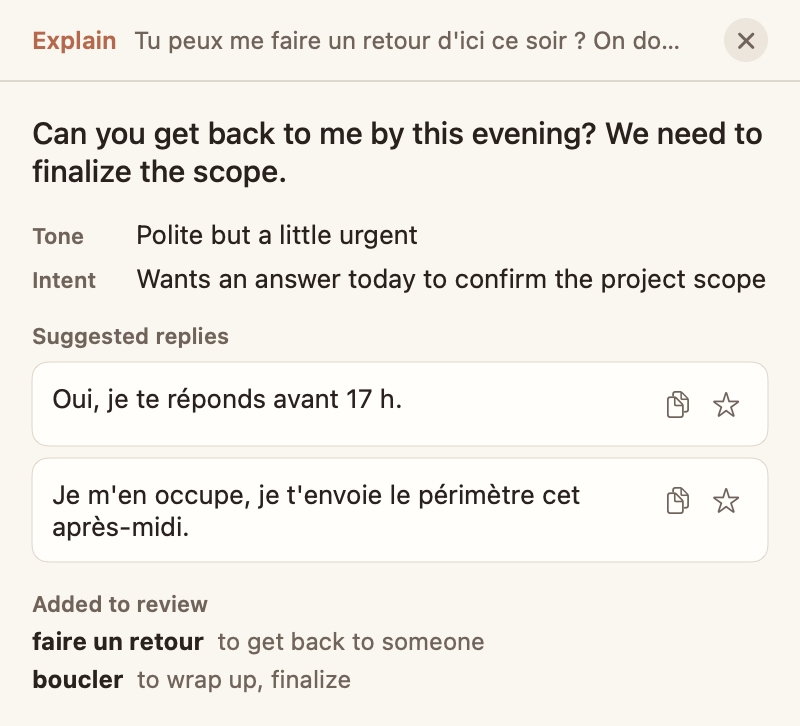
Explain
Select a message someone sent you and press ⌥E. A panel shows its meaning, tone, what they're asking for, and a few suggested replies you can copy or add to your saved replies.
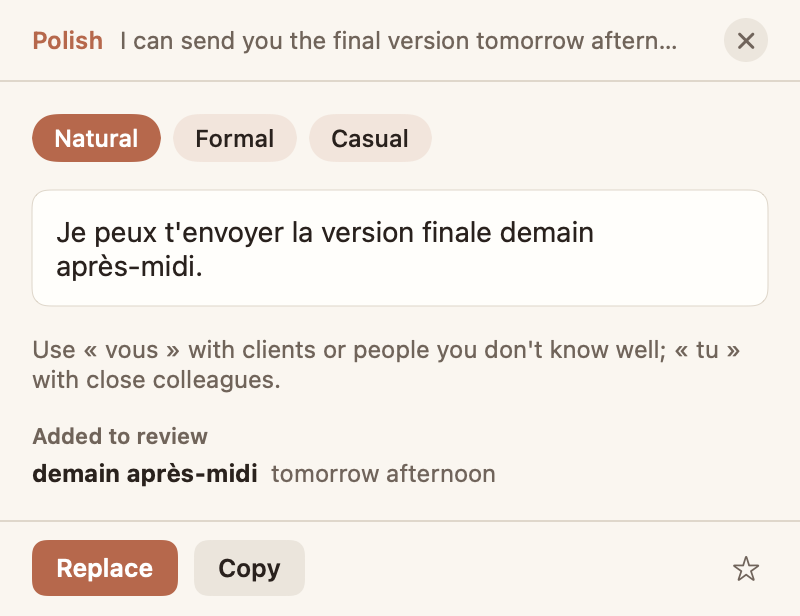
Polish
Write what you want to say in a text field, in your native language or the one you're learning, and press ⌥R. Pick natural, formal or casual, then click “Replace” to write it back into the field.
Install
- 1Open the downloaded TomTrove.dmg and drag TomTrove into Applications.
- 2Open TomTrove and log in with Google or email. It's the same account as the phone and web versions.
- 3When prompted, turn on TomTrove in System Settings → Privacy & Security → Accessibility. This permission is needed to read selected text and write back into text fields.
- 4The window includes a practice exercise: select the sample message and press ⌥E, then press ⌥R in the sample text field. For clipboard history alone, you don't need to log in.
- Sentences you send in the language you're learning, in any app, are recorded. When one isn't quite idiomatic, a better phrasing is suggested and added to your reviews; you can see these in the menu bar menu. You can turn this off in the menu. Password fields are never read.
- If you also have ClipArc installed: TomTrove already includes its clipboard features, and the menu will ask you to choose one so the history isn't recorded twice.
- On a US keyboard, ⌥E is also used to type é. If you write French or Spanish, you can change the shortcuts to ⌃⌥E / ⌃⌥R / ⌃⌥V in the menu bar menu.
- Words and sentences you use are added to your reviews, which you can do on your phone or on the web.
- Daily limits are shared with the phone and web versions. See Pricing.