 TomTrove

TomTrove for Mac
In Slack, Teams, email or the web, select text and press ⌥E to explain it, or press ⌥R to polish what you wrote and put it back, all grounded in your own knowledge base. Clipboard history is free, no account needed.
Download for MacVersion 2026.11.28.2 · 50.8 MB · Requires macOS 14 or later · Apple silicon and Intel
Clipboard · Saved replies · Materials
Press ⌥V to open the panel: copied text, images and files, saved replies and materials from your knowledge base are all here. Search, press Return, and it's pasted into the field you were in. Copied text can be explained with one click on “Explain”. Clipboard history doesn't require logging in; items copied from password managers aren't recorded.
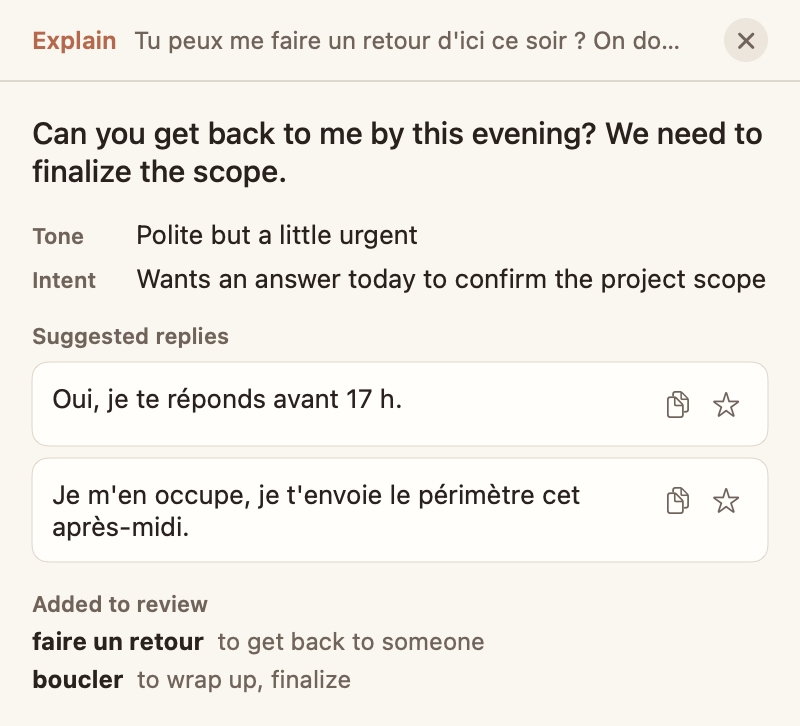
Explain
Select a message someone sent you and press ⌥E. A panel shows its meaning, tone, what they're asking for, and a few suggested replies you can copy or add to your saved replies.
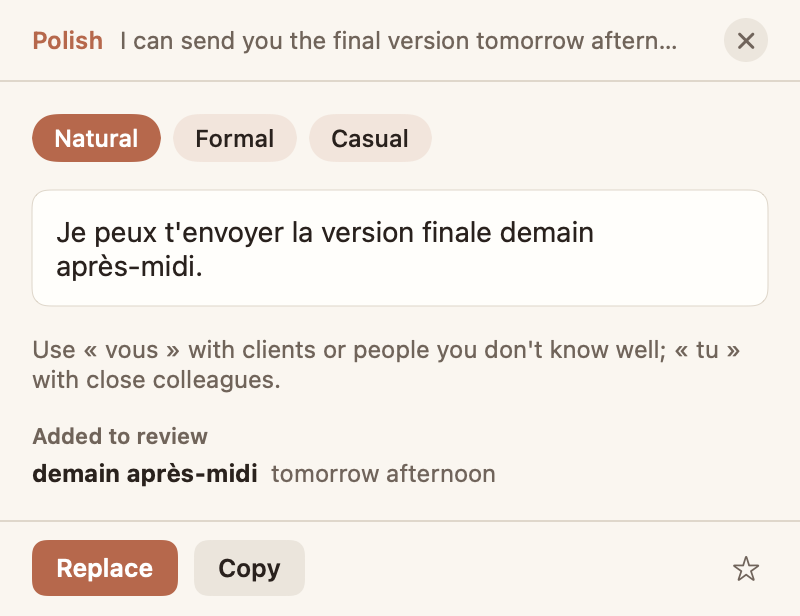
Polish
Write what you want to say in the text box, in any language, and press ⌥R. Pick natural, formal or casual, then click Replace to put it back.
Main window: knowledge base
Open it from the menu with Open TomTrove (⌘O). Write a note, paste a long text and have it split, import a web page or a PDF / Word / Markdown file, or drag files into the window. Search, multi-select, enable or disable in bulk. Files are read on your Mac.
Plugin Store
Install Work Assistant, Life Assistant and Language Learning from the Plugin Store in the sidebar. Before installing, you see what data each one reads. Once installed, its actions appear below your ⌥E / ⌥R results.
See the pluginsAI Remote (experimental)
Direct the AI coding agent in your terminal with a Bluetooth ring remote: speak, send, pick options and switch sessions. Off by default; turn it on in the main window.
Choosing a remote and setupInstall
- 1Open the downloaded TomTrove.dmg and drag TomTrove into Applications.
- 2Open TomTrove and log in with Google or email. It's the same account as the phone and web versions.
- 3When prompted, turn on TomTrove in System Settings → Privacy & Security → Accessibility. This permission is needed to read selected text and write back into text fields.
- 4The window includes a practice exercise: select the sample message and press ⌥E, then press ⌥R in the sample text field. For clipboard history alone, you don't need to log in.
- With the Language Learning plugin, sentences you send in the language you're learning are kept; anything that sounds unnatural gets a better wording and is added to review, shown in the menu-bar menu. You can turn this off in the menu, and password fields are never read.
- If you also have ClipArc installed: TomTrove already includes its clipboard features, and the menu will ask you to choose one so the history isn't recorded twice.
- On a US keyboard, ⌥E is also used to type é. If you write French or Spanish, you can change the shortcuts to ⌃⌥E / ⌃⌥R / ⌃⌥V in the menu bar menu.
- With the Language Learning plugin, the words and sentences you use are added to review, on your phone or the web.
- Daily limits are shared with the phone and web versions. See Pricing.